
How to add a business card to Apple Wallet
Apple Wallet only holds passes, not contacts or PDFs. Here is how a business card gets in there, how to add one you have been given, and how to put your own in your customers' Wallets.
By Hillside Digital Pty Ltd · Published 20 October 2026 · 8 min read
Want your own card in your customers’ Wallets?Build one for free
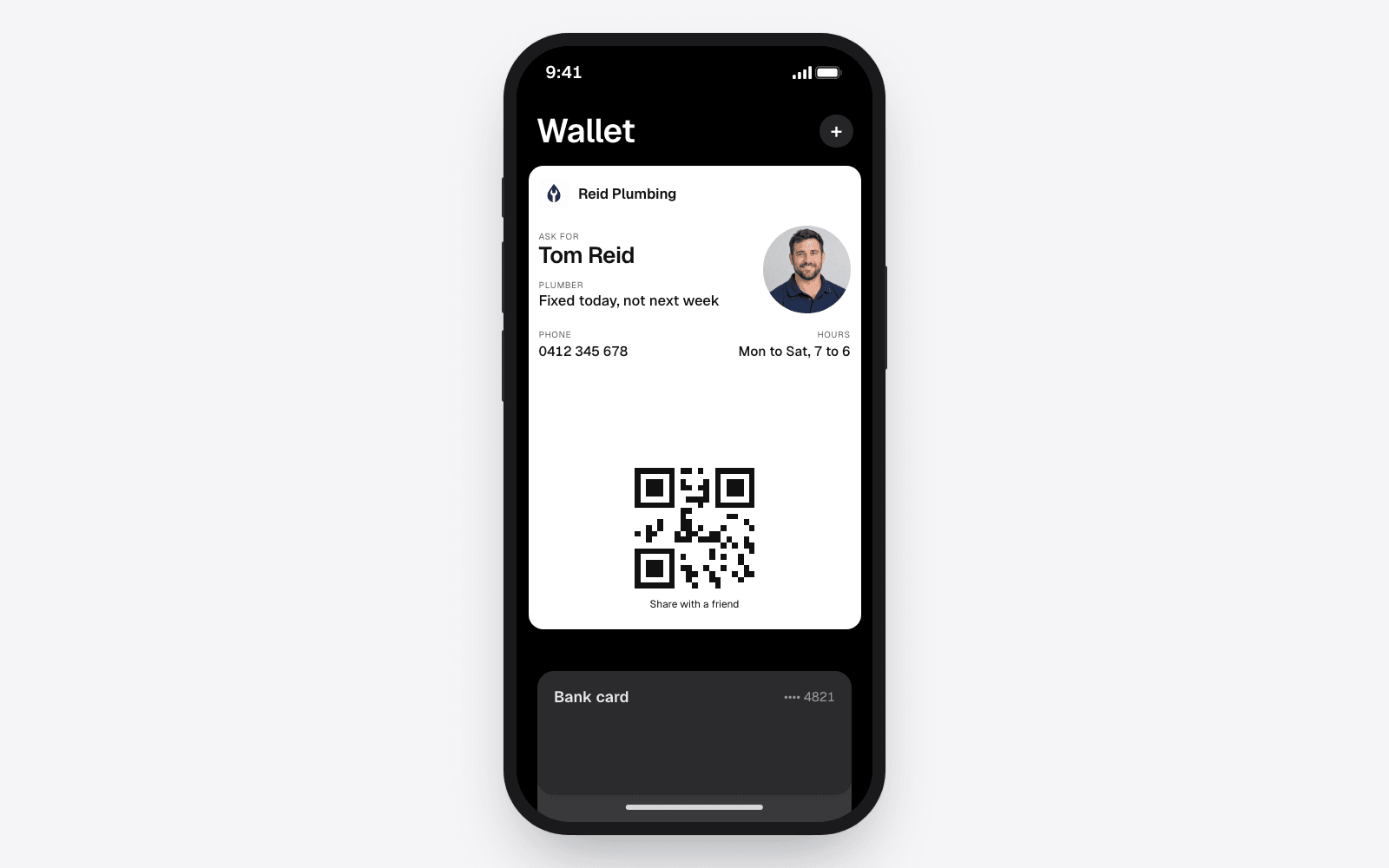
Apple Wallet is the app on every iPhone that holds boarding passes, event tickets, loyalty cards and bank cards. It can hold a business card too, and when it does, that card sits next to the customer's bank cards, in the one app they open at the checkout every day.
There is a catch that trips most people up. Wallet does not take contacts, photos or PDFs. You cannot share a business card from Contacts into Wallet, and a screenshot of a card lives in Photos, not in Wallet. A card in Wallet has to be a pass, the same kind of file an airline or a cinema issues. This guide covers both sides of that: adding a card someone has given you, and getting your own card into other people's Wallets.
If someone has given you their card
A business that uses Wallet cards will hand you a QR code, a link, or a card on their own phone screen. All three lead to the same place.
- Point your iPhone camera at the QR code, or tap the link. A page opens in Safari showing the card.
- Tap Add to Apple Wallet.
- Wallet shows the card. Tap Add in the top right corner.
That is it. There is no app to install and no account to create. The card is in Wallet now, and you can close Safari.
To find it later, open Wallet and scroll down past your bank cards. Passes sit underneath them. If you have a lot of passes, pull down on the list to search by the business name.
What the card can do
The front shows the business: the logo, the name, and the details that matter for that trade, such as a phone number and a licence number. The front is for recognising the business at a glance.
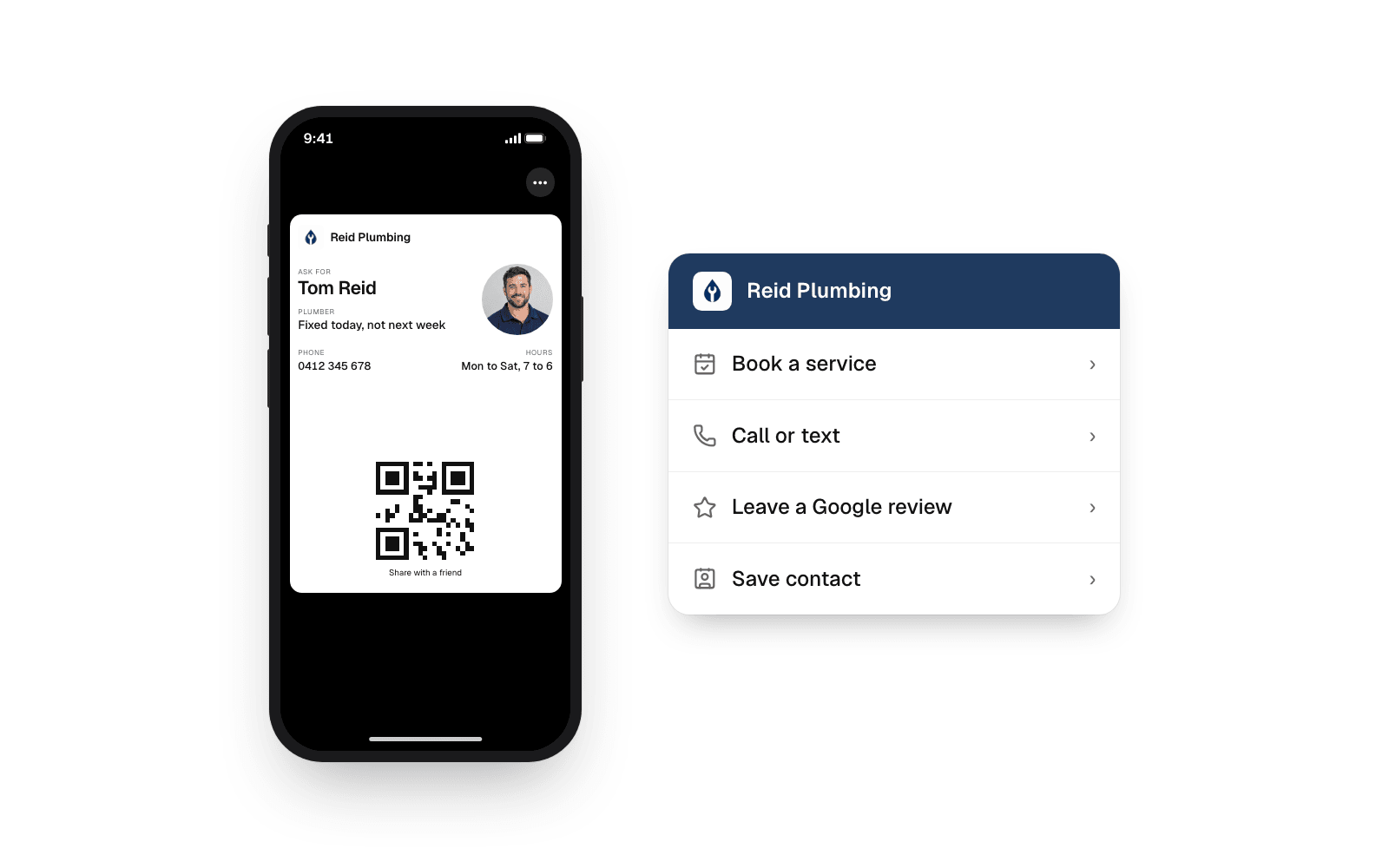
Tap the ••• button in the corner and the card turns over. The back is where the buttons are: call, book a job, leave a Google review, open the website, and a Save contact button for the times you want the number in your Contacts as well. The order and the wording are set by the business, so a plumber's card might lead with a call button and a photographer's might lead with a booking link.
Because the card is a pass, the business can update it. If they change their number or their hours, the copy in your Wallet changes on its own. You never have to re-save it.
Why you cannot just add your own card
If you run a trade or a small local business and you searched for this because you want your own card in Apple Wallet, here is the honest answer: you cannot build one on the phone and drop it in. Apple only accepts passes that are signed by a registered developer, and each one has to be served from a web address that Apple can check. That is why airlines and ticket companies can do it and a contact file cannot.
So you need a service that issues the pass for you. That is what echocard is. You build the card on your phone, echocard signs it and hosts the page the QR code points to, and your customers add it the same way as above.
Putting your own card in your customers' Wallets
Here is the whole process, start to finish.
- Build the card. Open Start for free, put in your business name, your logo if you have one, your phone number and the lines you want on the front, such as a licence number or your hours. Pick a colour. The preview is a real Wallet card at real size, so what you see is what the customer gets.
- Set the buttons on the back. Add your Google review link, your booking page and your website. Put the one you care most about first.
- Add it to your own Wallet. The first thing you see after building is a QR code. Scan it with your own phone and the card goes into your Wallet. Your copy is not counted as a customer, so scan away. The help article on putting the card in your own Wallet covers this step.
- Hand it out. When you finish a job, open your own copy in Wallet and show the customer the QR code on the front. Their camera reads it, the card page opens, and one tap saves it. Away from the customer, the same QR code goes on your invoices, your quotes, the side of the van and the counter. The link goes in your email signature and your text messages.
The whole thing takes about five minutes, and there is nothing to print.
What happens after they save it
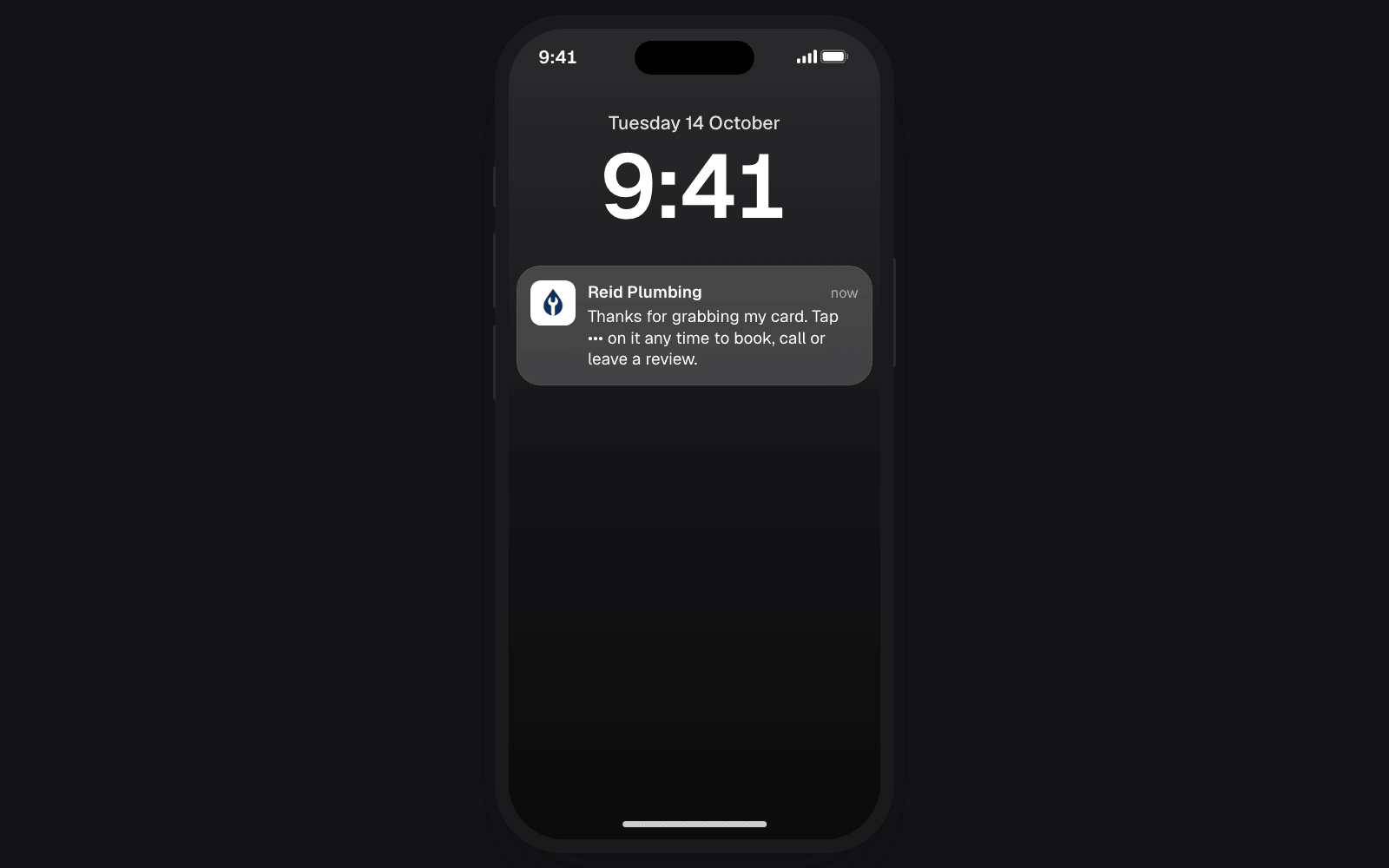
The card does not just sit there. Once a customer saves it, echocard can send a short thank you the next day with your Google review link on the back of the card, and a reminder a month on. Those messages arrive on the lock screen with your name and logo, the same way a boarding pass tells you a gate has changed. That is the part that turns a card into repeat work, and it is covered in the guide on getting more Google reviews.
If you change the card later, every copy updates. New number, new logo, new hours. You will never reprint.
Customers on Android
Android phones use Google Wallet instead of Apple Wallet. Your card page works out which phone it is on and offers the right one, so you only ever hand out one QR code. The card looks the same on both and the buttons do the same things. The short answer to does it work on iPhone and Android is yes.
When the Add button does not work
A few things can get in the way, and they are all quick to fix.
- The link opened inside another app. If a customer taps your link inside Instagram, Facebook or a messaging app, that app's built-in browser may not be able to add passes. Ask them to open the link in Safari instead. The card page tells them this too.
- Wallet has been removed from the phone. It can be put back from the App Store for free. Search for Apple Wallet.
- The phone is an older model. Wallet passes work on every iPhone that still gets software updates. If the phone is very old, the Save contact button on the card page still gives them your details.
- The camera did not read the code. Hold the phone a little further back and make sure the code is well lit. Printed codes should be at least two and a half centimetres across.
Frequently asked questions
Can you put a business card in Apple Wallet?
Yes, as a pass. Apple Wallet does not accept contacts, photos or PDFs, so a business card has to be issued as a signed pass by a service that can do that. Once it is, a customer adds it with one tap from a QR code or a link, and it sits with their other cards. The guide to what Apple Wallet accepts and what it does not explains why contacts and PDFs will not go in.
Does the customer need an app to add the card?
No. The card page opens in Safari, the customer taps Add to Apple Wallet, then Add. There is nothing to install and no account to create.
Can a business card in Apple Wallet be updated after it is added?
Yes. A pass is updated by the business that issued it, so a new phone number, new hours or a new booking link appear on the card in every Wallet that holds it. The customer does nothing.
What about customers on Android?
The same QR code and link give an Android phone the Google Wallet version of the card. The business builds one card and both kinds of phone get the right one.
The short version
Apple Wallet holds passes, not contacts. To add a business card you have been given, scan its QR code and tap Add. To put your own card in your customers' Wallets, build it with a service that issues passes, add it to your own Wallet, and show the QR code at the end of every job. See how it looks for electricians and handymen, or start for free and have your own in Wallet in five minutes.