
How to get more Google reviews for your trade business (the QR code method)
Reviews come from asking at the right moment and making it one tap. Here is how to get your review link, put it behind a QR code, and keep asking after you have left the job.
By Hillside Digital Pty Ltd · Published 20 October 2026 · 8 min read
Want your own card in your customers’ Wallets?Build one for free
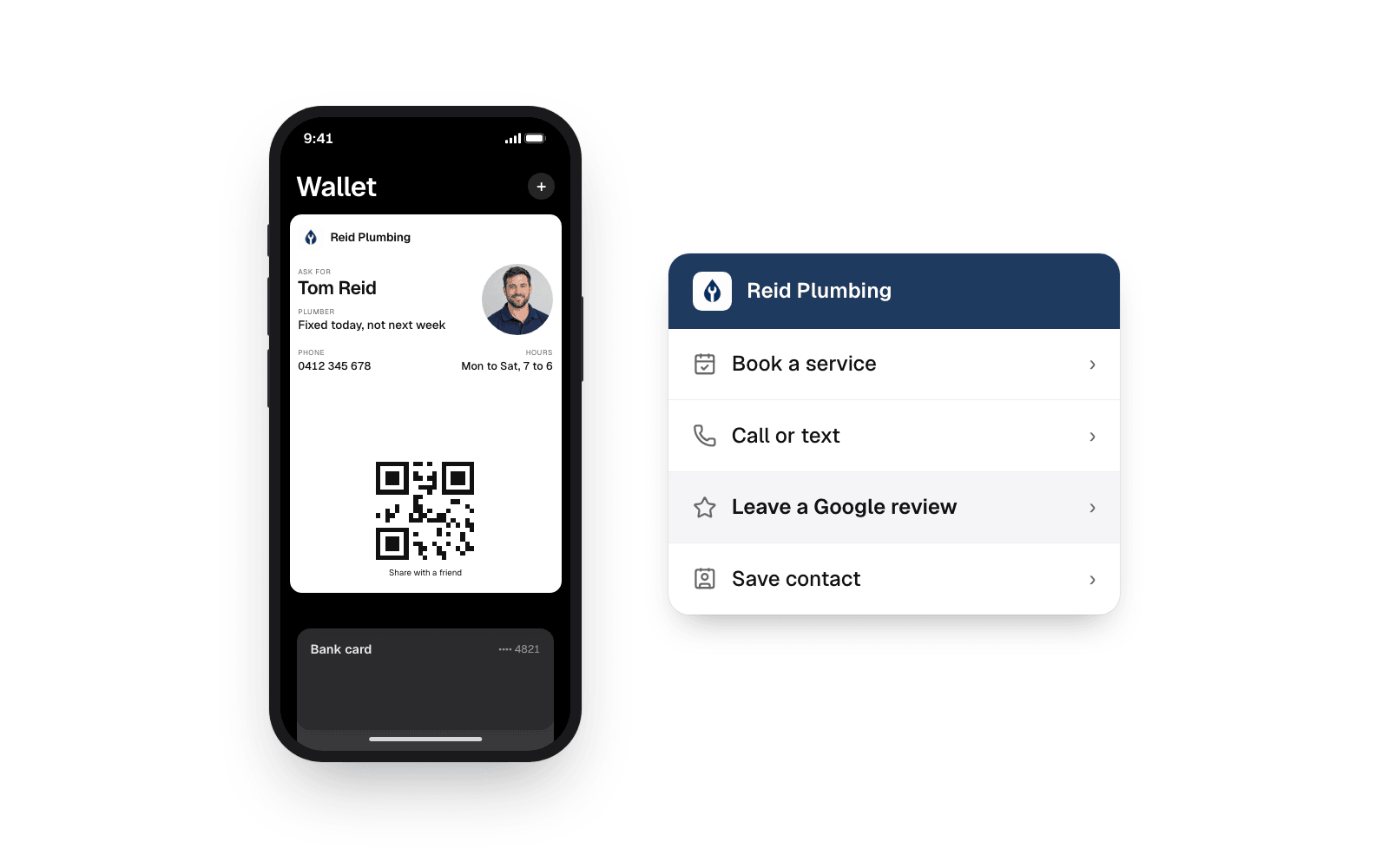
Most people running a trade or local service business know they should have more Google reviews. The customer was happy, the job was tidy, and they said thanks at the door. Then nothing. Not because they would not have written one, but because nobody asked at the right moment, and when somebody did ask, it took too many steps.
Getting reviews is not about charm. It is about two things: asking while the job is still fresh, and making the review one tap away. A QR code does the second part. The rest of this guide is about getting the first part right, including what to do after you have driven off.
Step one: get your Google review link
Every business on Google Maps has a short link that opens the review box directly, with the stars ready to tap. You want that link, not a link to your Maps listing, because every extra tap loses people.
- Open the Google Business Profile app, or search your business name on Google while signed in to the account that manages it.
- Find Ask for reviews in your profile panel. Google shows a short link that starts with g.page.
- Copy it. Paste it somewhere safe, like a note on your phone. You will use it in every step below.
If you do not have a Business Profile yet, set one up first. It is free, and it is the thing that shows your business on Maps with its stars and photos. Without it there is nowhere for a review to go.
Step two: put the link behind a QR code
A QR code turns a long web address into something a phone camera reads in a second. The customer points, taps, and lands on the review box with the stars already on screen.
There are two ways to do this, and they are not the same.
A QR code straight to the review page. Plenty of free generators will make one. Print it on invoices, stick it on the counter, laminate it for the van. It works, and it is better than nothing. Its weakness is that it is one shot: the customer either scans it while you are standing there or they never do. Once the invoice is in the drawer, the moment is gone.
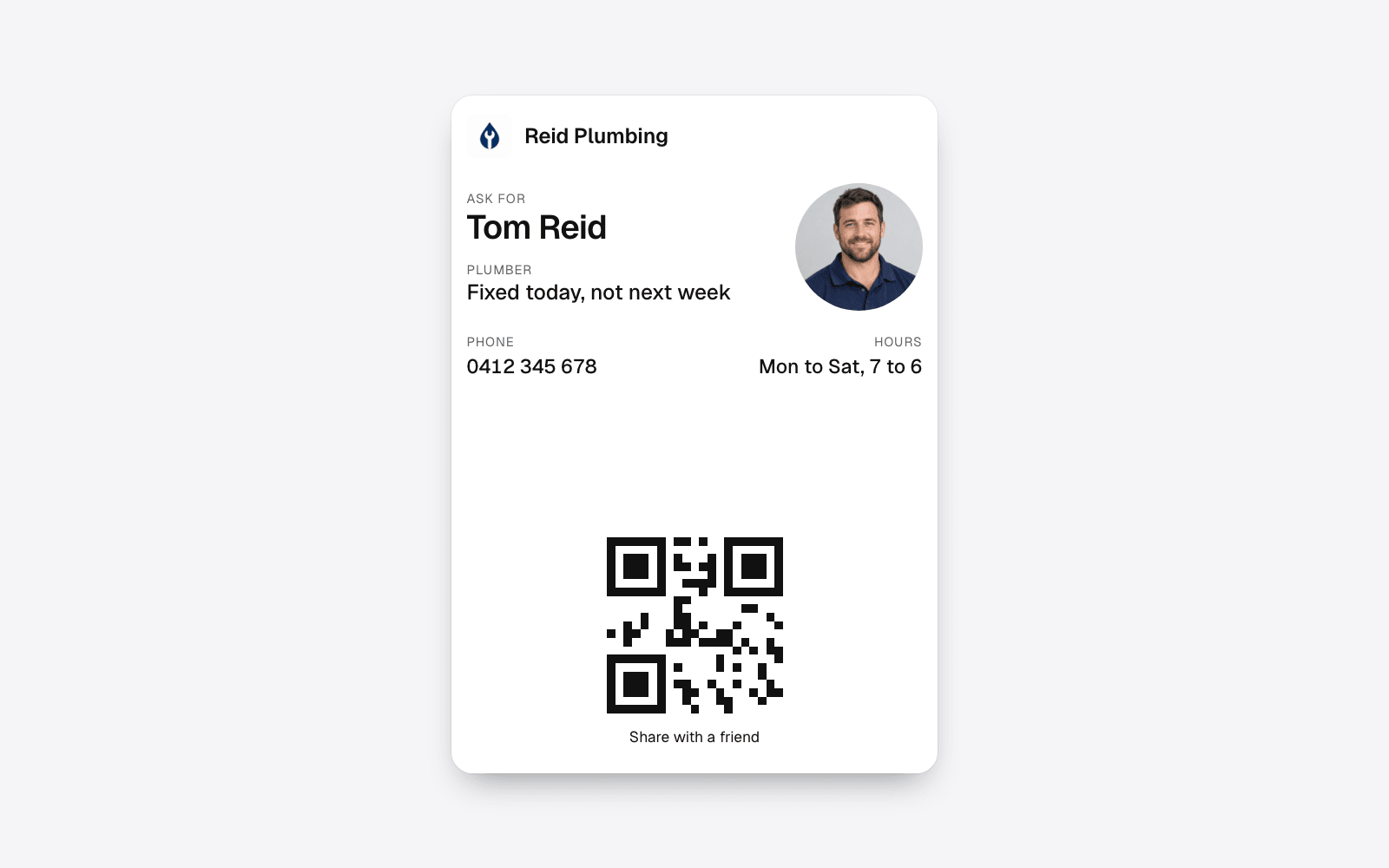
A QR code that puts your card in their Wallet. This is the method the rest of the guide is built on. The code adds your business card to the customer's Apple Wallet or Google Wallet, and your review link is a button on the back of that card. The customer keeps the card next to their bank cards, so the review link is still there a week later, and so is your phone number for the next job. The guide on adding a business card to Apple Wallet shows what that looks like from the customer's side.
With echocard, you paste your Google review link into the Review button when you build the card. Put it first in the list of buttons so it is the one they see when the card turns over.
Step three: ask at the end of the job
The best time to ask is the moment the customer is happiest, which is usually when you are packing up and they can see the finished work. Not three days later by text, and never on the invoice alone.
Keep it short and say it the way you would say anything else.
- "If you're happy with the job, a Google review really helps us. Here, scan this and it's one tap."
- "Reviews are how most of our work comes in. Would you mind leaving one? I'll send you the link so you can do it when you've got a minute."
Then show them the code. If you use a Wallet card, open your own copy in Wallet and hold up the QR code on the front. Their camera reads it, your card goes into their Wallet, and the review button is on the back. If they do not have time right now, that is fine. The card is in their pocket and the next step takes care of it.
Step four: follow up the next day, without doing anything
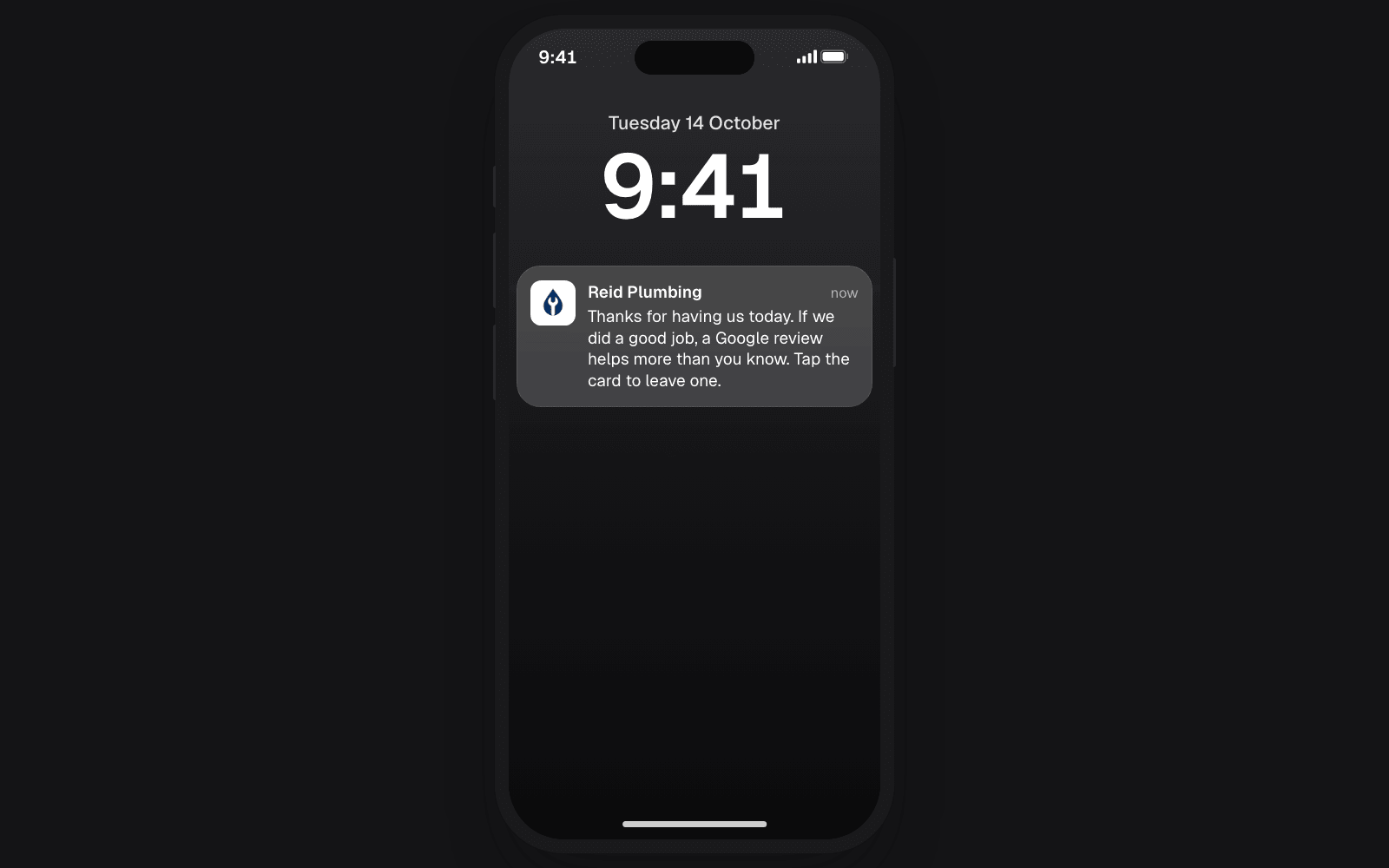
This is where the Wallet card earns its keep. Once a customer saves your card, echocard sends a short thank you the next morning, delivered as a notification on their lock screen with your name and logo. Tap it and the card opens with the message and the review button right there.
The default wording is a thank you for saving the card and an invitation to book, call or leave a review. You can change the words to suit how you talk, and you can change the timing. The next morning works well for most trades because the job is still fresh and the customer has had a night to notice that everything works. The help article on the automatic follow-ups explains how the series runs and how to edit it.
A reminder goes out a month later and another at ninety days. Those are less about reviews and more about the next job, but a customer who did not review you the first time sometimes does on the second nudge.
Step five: make the card easy to find everywhere else
The in-person ask is the strongest, but the same QR code should be everywhere a customer looks at your business.
- On the bottom of every quote and invoice, with one line next to it: "Scan to save our card and leave a review."
- On the van, somewhere a person can scan it while you are inside working.
- On the counter or the front desk if you have one.
- In your email signature and your text messages, as the plain link rather than the code.
Each save is counted by where it came from, so after a month you can see whether the invoice or the van is doing the work. The help article on sharing the QR code and link covers downloading the code at print size.
The rules worth knowing
Google's review policies are short, and breaking them costs more than it saves.
- No incentives. No discounts, gifts or draws in exchange for a review.
- Ask everyone. Only asking customers you know are happy, and steering the unhappy ones away from Google, is called review gating and Google treats it as a violation. Ask every customer the same way.
- Do not write them yourself, and do not have family or staff write them. Google is good at spotting it, and customers are better.
- Reply to reviews, including the bad ones. A calm reply to a bad review does more for the next reader than five good ones.
Frequently asked questions
How do I get a QR code for my Google reviews?
Copy the short review link from your Google Business Profile (it starts with g.page), then either paste it into a free QR code generator for a print-only code, or put it on the back of a Wallet business card so the code saves the card and carries the review link with it.
When is the best time to ask a customer for a Google review?
At the end of the job, while the result is in front of them, and once more the next morning. The next-morning ask is the one most businesses never make, and it is the one a Wallet card can send for you.
Can I offer a discount for a Google review?
No. Google's review policy bans offering anything in return for a review, and a run of reviews that all mention a freebie can get a listing filtered. A plain ask is enough.
How many reviews should a local trade business aim for?
More than the businesses you are compared with on the map, with recent dates. Customers read the last few reviews and the count, so a steady trickle every month matters more than a burst.
What good looks like
A steady trickle beats a burst. A business that picks up a review or two a week, every week, for a year, ends up with a profile that looks alive and trusted. That trickle comes from a habit: ask at the end of every job, show the code, let the follow-up do the second ask. Nothing in that list needs you to remember anything after you have driven off.
See the card built for handymen or electricians, or start for free and have your review link on the back of a Wallet card in five minutes.