
How to add a business card to Google Wallet (Android, Samsung and Pixel)
Google Wallet holds passes, not contacts. Scan the card's QR code or tap its link, then tap Save to Google Wallet. Here is how it works on Android, and how to put your own card there.
Published 25 October 2026 · 7 min read
Want your own card in your customers’ Wallets?Build one for free
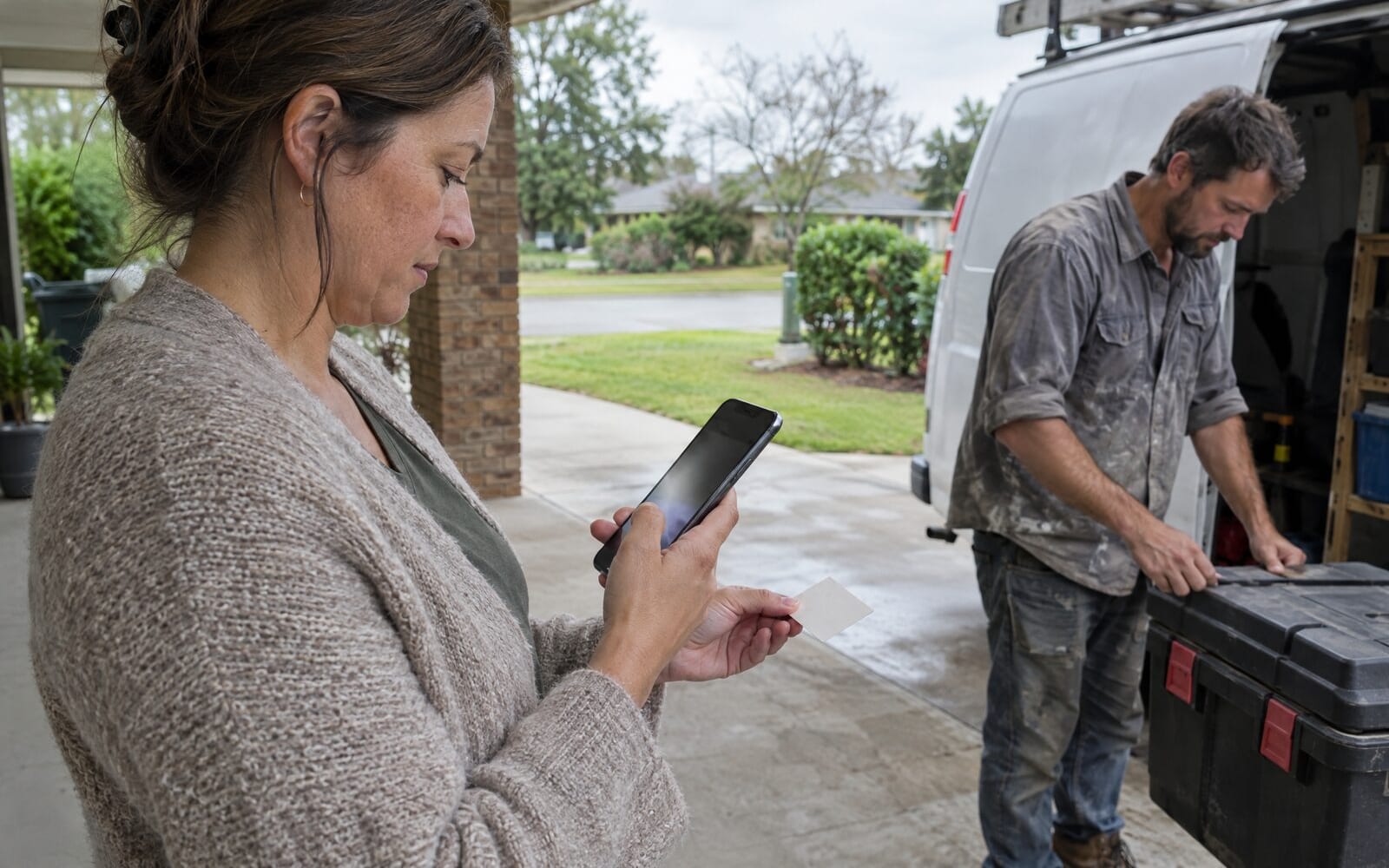
Google Wallet is the app on Android phones that holds payment cards, boarding passes, tickets and loyalty cards. A business card can go in there too, as a pass, and once it is saved it sits with the customer's other cards rather than in a drawer or a pile of contacts.
To add a business card to Google Wallet, scan the card's QR code with the phone camera or tap its link, then tap Save to Google Wallet on the page that opens. Google Wallet does not take contacts, photos or PDFs, so the card has to be issued as a pass by the business. This guide covers adding a card you have been given, the differences between Samsung and Pixel phones, and how a business puts its own card into customers' Google Wallets.
Adding a card someone has given you
A business that uses Wallet cards will show you a QR code, send you a link, or hold up the card on their own phone. Each one ends in the same place.
- Open the camera and point it at the QR code, or tap the link. The card page opens in Chrome or your phone's browser.
- Tap Save to Google Wallet.
- Google shows a preview of the card. Tap Save.
The card is now in Google Wallet. There is no app to install and nothing to sign up for. You do need to be signed in to a Google account on the phone, which nearly every Android phone already is.
To find it later, open the Google Wallet app and scroll down past your payment cards to your passes. If you have a lot of passes, use the search at the top and type the business name.
Samsung and Pixel phones
Most Android phones work the same way, but the two biggest makers each have a quirk worth knowing.
- Pixel phones come with Google Wallet already installed. The card saves straight in.
- Samsung phones have Samsung Wallet as well as Google Wallet. A business card saved this way goes into Google Wallet, not Samsung Wallet. If Google Wallet is not on the phone, it is free to install from the Play Store. The swipe-up shortcut on many Samsung phones opens Samsung Wallet, so to see the card, open the Google Wallet app itself.
- Other Android phones with the Play Store can install Google Wallet for free if it is not already there.
What the card looks like in Google Wallet
The front shows the business: its logo, its name, its colour, and the few details that matter for the trade, such as a phone number or a licence number. Tap the card to open it and the details and buttons are underneath: call, book a job, leave a Google review, visit the website, save the contact.
Google Wallet lays those buttons out as a list rather than on the back of the card the way Apple Wallet does. That is the main visible difference between the two. The order and wording are set by the business, so a lawn care business might put booking first and an electrician might put the call button there.
Because the card is a pass, the business can change it. A new phone number, new hours or a new booking link appears on the card in every Wallet that holds it. You never have to save it again.
Why one QR code works for iPhone and Android
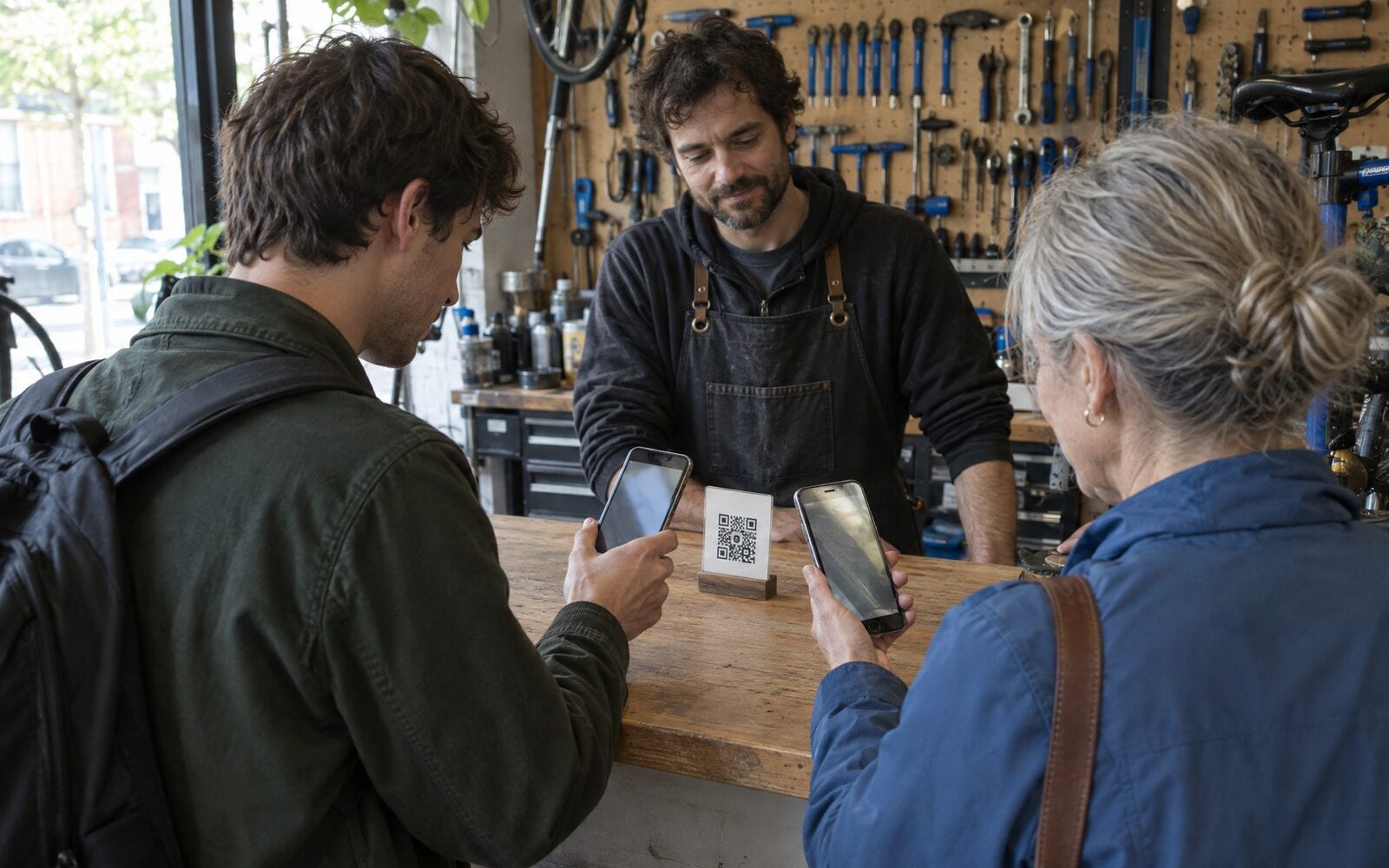
If you run a trade or a local service business, half of your customers might carry an iPhone and half an Android, and you have no way of knowing which before they scan. You do not need two codes. The QR code opens your card page, the page works out which phone it is on, and it offers Apple Wallet to an iPhone and Google Wallet to an Android phone. The card looks the same and the buttons do the same things on both.
That matters most for anything you print. One code on the invoice, the van and the counter stand covers every customer. The guide to putting a QR code on a business card covers where to put it and how big to print it.
Putting your own card in your customers' Google Wallets
You cannot build a Google Wallet pass on your own phone and send it. Google only accepts passes issued by a business registered with its Wallet service, which is why airlines, cinemas and loyalty programmes can do it and a contact file cannot. So you need a service that issues the pass for you. That is what echocard does, for Google Wallet and Apple Wallet from the same card.
- Build the card. Open Start for free on your phone and add your business name, logo, phone number and the lines you want on the front. Pick a colour.
- Set the buttons. Add your Google review link, your booking page and your website, with the one you care most about first.
- Save it to your own phone. Scan your own QR code and save the card. Your copy is not counted as a customer. The help article on putting the card in your own Wallet walks through it.
- Hand it out. At the end of a job, open your card and hold up the QR code for the customer to scan. Put the same code on your invoices and quotes, and the link in your texts and email signature.
The whole thing takes about five minutes, and nothing gets printed unless you want it to.
When Save to Google Wallet does not work
Most problems have a quick fix.
- The link opened inside another app. Facebook, Instagram and some messaging apps open links in their own built-in browser, and the save button may not work there. Open the link in Chrome instead. The card page tells the customer this too.
- The phone is not signed in to Google. Google Wallet saves the card to a Google account, so the phone needs one. Settings, then Accounts, is where to add it.
- Google Wallet is not installed. It is free from the Play Store.
- The camera did not read the code. Step back a little and make sure the code is well lit. Some older phones need the Google Lens button in the camera to read QR codes.
If none of that works, the card page still has a Save contact button, so the customer can at least keep your number.
Frequently asked questions
Can you add a business card to Google Wallet?
Yes, as a pass. Google Wallet does not accept contacts, photos or PDFs, so the card has to be issued by a business through a service that can create Google Wallet passes. The customer then scans its QR code or taps its link and taps Save to Google Wallet.
Can I add a business card to Samsung Wallet?
A business card from echocard saves to Google Wallet, which runs on Samsung phones alongside Samsung Wallet. The customer opens the Google Wallet app to find it. If Google Wallet is not installed, it is free from the Play Store.
Does the customer need to download an app?
No. The card page opens in the phone's browser and saves into Google Wallet, which most Android phones already have. Nobody creates an account beyond the Google account already on the phone.
Does a Google Wallet business card update when the business changes it?
Yes. A pass stays linked to the business that issued it, so a new phone number, new hours or a new link appears on the card in every Wallet that holds it, with nothing for the customer to do.
The short version
Google Wallet holds passes, not contacts. To add a business card you have been given, scan its code or tap its link and tap Save to Google Wallet. To put your own card in your customers' Wallets, build it with a service that issues passes and hand out one QR code that serves Android and iPhone alike. The Apple Wallet guide covers the iPhone side. See how a card looks for handymen and lawn care, or start for free and have yours ready in five minutes.