
How to put a QR code on a business card (and what it should do when it is scanned)
Put one QR code on your card, van and invoices, and make it save your business card to the customer's Wallet rather than open a website they will forget.
Published 22 October 2026 · 7 min read
Want your own card in your customers’ Wallets?Build one for free
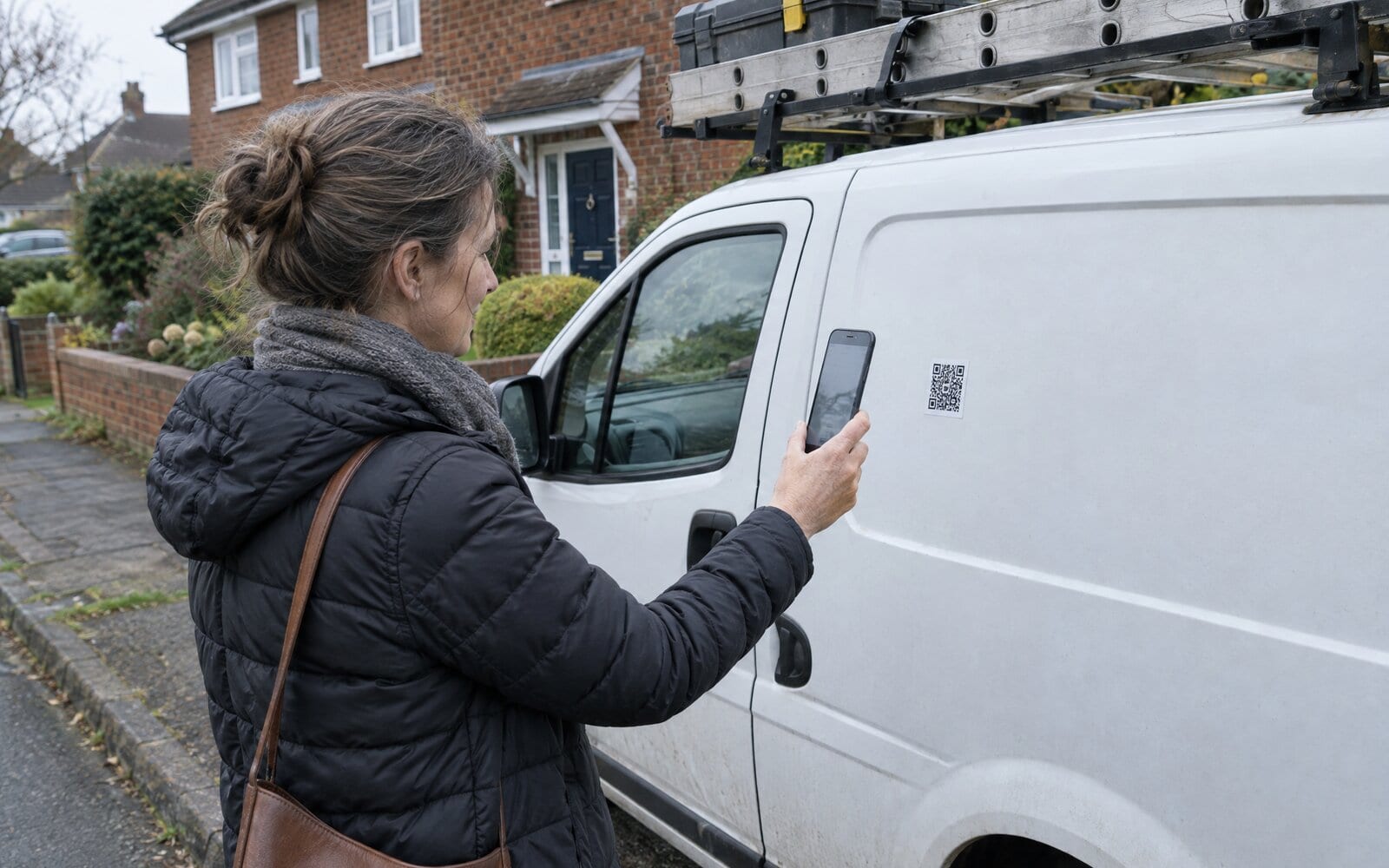
You can put a QR code on a business card, and you should. The code itself is easy: any QR code generator turns a web address into a square you can print. The part that matters is what the code opens when a customer scans it, because that decides whether they still have your details next month.
A QR code on a business card can open one of three things: a website, a contact file, or a card that saves to Apple Wallet or Google Wallet. The third is the one customers keep, because it sits in the Wallet app beside their bank cards and updates itself when your details change. Once you have that code, put the same one on your paper card, your van and the bottom of every invoice.
What a QR code on a business card can open
A QR code is a web address a phone camera can read. What happens next depends on where that address goes.
- A website. The customer lands on your home page. It works, but nothing is saved. Next time they need you, they have to remember your name and search for it, and they may find someone else first.
- A contact file. The phone offers to add you to Contacts. That is better, but a saved contact is a copy: change your number and every copy already saved is wrong, and there is no button on it for booking or leaving a review.
- A Wallet card. The phone offers to add your business card to Apple Wallet or Google Wallet. It stays linked to your business, so when you change a detail every saved copy changes too, and its back holds your buttons: call, book, leave a Google review, save the contact.
The guide on whether you can put a business card in Apple Wallet explains why only a pass goes into Wallet, and why a contact or a PDF will not.
Why the Wallet card is the one customers keep
A paper card goes in a drawer or the bin, a website visit leaves nothing behind, and a contact gets buried among hundreds of others. A Wallet card sits where the customer already looks: they open Wallet to pay for things, and your card is there beside the bank cards when the tap starts dripping again.
The other reason is updates. Print a code that opens a contact file, change your mobile number, and every customer who scanned it has the old one. A code that saves a Wallet card never goes stale, because the card it saved changes on every phone when you edit it.
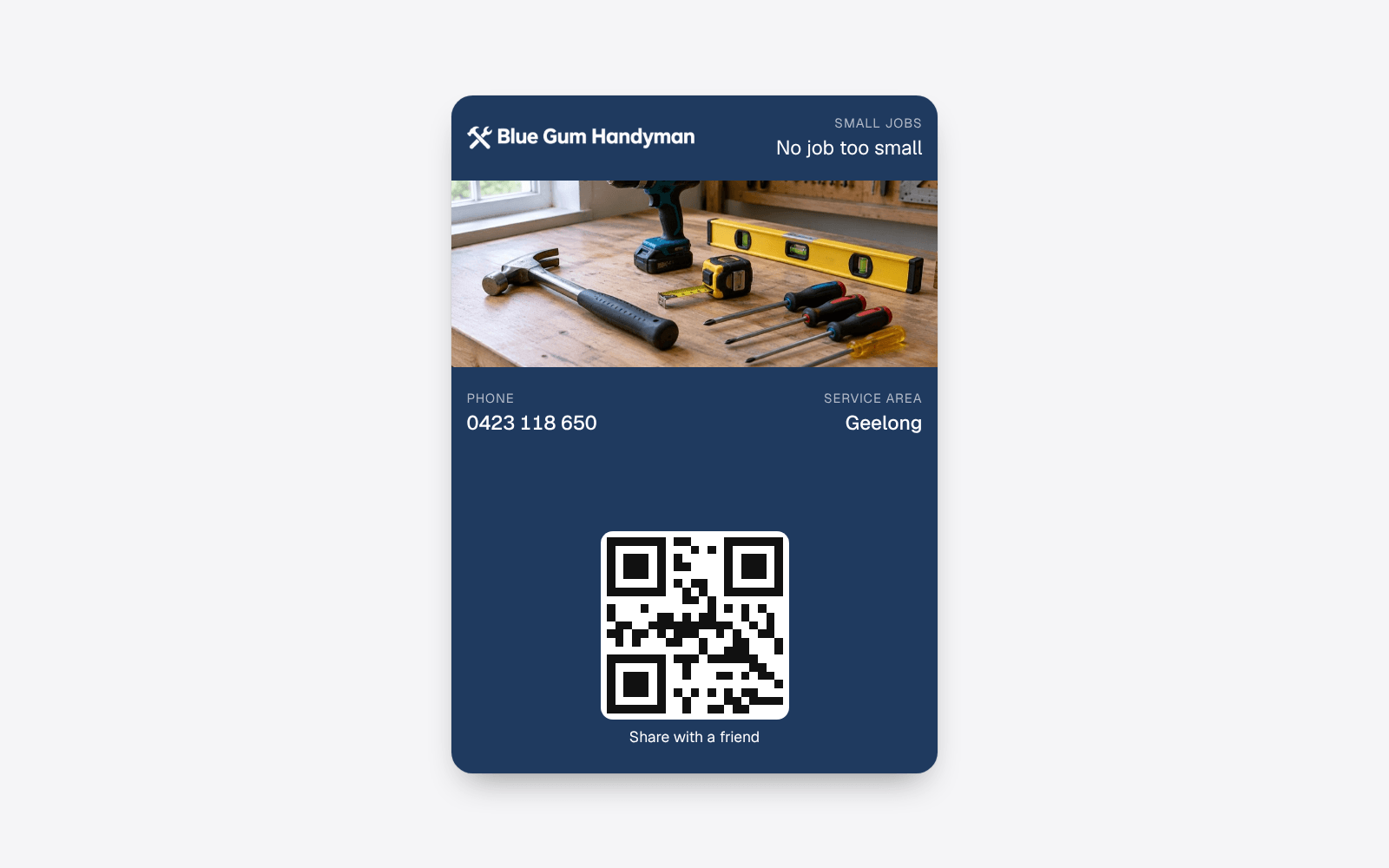
The front of the Wallet card carries the code too, so your own copy in your own Wallet works as a card you hold up for someone to scan.
How to get the QR code
- Build your card at echocard.co/start on your phone. Put in your business name, trade, logo, phone number, booking link and Google review link.
- Open the Share page and download the QR code as an image.
- Put the image into whatever you print: the artwork for your paper cards, the sticker for the van, the footer of your invoice template.
- Print one test copy and scan it with your own phone, from where a customer would stand. If it opens your card page, you are done.
The code and the link never change, even when you edit the card, so you print once. The help article on sharing the QR code and link covers the link as well, for texts, emails and your social bio.
Where to put the code on a paper card
On a paper business card, the code goes on the back or in a corner of the front, with a short line beside it that says what it does: "Scan to save our card to your phone". A code with no words next to it is easy to ignore, because people do not know whether it opens a menu, a website or something they have to sign up for.
Keep it plain: a dark code on a light background, with clear space around it, never stretched or printed over a photo.
Where else the same code earns its place

The invoice is the best place for the code after the paper card. The customer reads it closely, often at the kitchen bench right after the job, when they are happy with the work. A line under the code, such as "Scan to keep our card and leave us a review", does the asking for you.
Other places that work for a trade or local service business:
- The van. People see it parked outside the job next door. Make the code large enough to scan from the footpath, put it at eye height on a flat panel, and test it from a few steps away.
- Quotes. A customer comparing three quotes can save yours and find it again when they decide.
- A sticker on your work. Inside a meter box door, on a hot water unit, under the sink. Whoever needs you next finds you right there.
On echocard, each save is recorded with where it came from, so on Pro the numbers page shows whether the van, the invoice or the paper card brings in the most saves.
What the customer sees when they scan it
On an iPhone, the camera shows a link to your card page, and one more tap adds the card to Apple Wallet. On an Android phone, the same code adds it to Google Wallet, so you never print two. Nobody installs an app or signs up for anything. The guide on adding a business card to Apple Wallet walks through those screens one by one.
Frequently asked questions
Can I put a QR code on a business card?
Yes. A QR code fits on the back or the corner of a standard paper business card. Make it open a card the customer can save to their Wallet, add a short line saying what scanning does, and test a printed copy first.
What should the QR code on a business card link to?
It should save your details somewhere the customer will find them again. A Wallet card does that best, because it sits beside their bank cards and updates itself when your details change. A website saves nothing, and a contact file goes out of date the moment your number changes.
Can I make a QR code for my business card for free?
Yes. echocard's Free plan gives you one business card in Apple Wallet and Google Wallet with its own QR code, which you download from the Share page. There is no time limit and no card details are needed to start.
Do I have to reprint my cards when my details change?
Not if the code opens a Wallet card. The code and the link stay the same while you edit the card, and every copy already saved on a customer's phone updates on its own.
Does the same QR code work on iPhone and Android?
Yes. The code opens your card page, which offers Apple Wallet on an iPhone and Google Wallet on an Android phone. You print one code for both.
The short version
Putting a QR code on a business card is easy; making it worth scanning is the point. Point the code at a card that saves to the customer's Wallet, print the same code on your paper cards, van and invoices with a line that says what it does, and test it before you print a box. See how it looks for handymen, or start for free and download your code in five minutes.